
Affiliate disclosure: Cord Cutter Tips may earn a commission from qualifying purchases made through links in this guide.
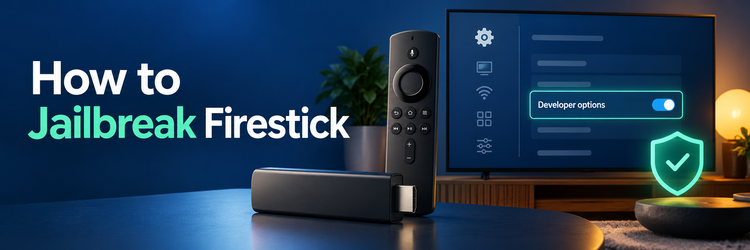
To learn how to jailbreak Firestick, you do not need to root the device, replace its operating system, or bypass Amazon account security. The phrase usually means revealing Developer Options on a compatible Fire OS device, allowing one trusted installer such as Downloader to install an Android APK, and turning that permission off afterward.
In my review of Amazon’s current Fire TV specifications, the operating system is the first check that matters: newer Vega OS models do not use Android APKs and cannot follow the traditional Firestick sideloading process. On a supported Fire OS stick, the setup takes roughly 10 minutes. Use it only for an app whose publisher and download address you can verify. Sideloading does not make copyrighted streams lawful, and this guide does not cover piracy apps, paid-content bypasses, stolen accounts, DRM removal, or other access-control evasion.
Before You Start: Confirm Your Firestick Can Be Sideloaded
Keep the Firestick connected to its power adapter, stable Wi-Fi, and a TV where settings are readable. I recommend checking Settings > Device & Software > About before installing anything because Amazon now sells both Fire OS and Vega OS streaming sticks. The familiar APK method applies to compatible Android-based Fire OS models; it does not apply to Vega OS hardware. Menu names can differ on older software.
| Check | Continue when | Stop or investigate when |
|---|---|---|
| Operating system | The device reports Fire OS | It reports Vega OS |
| Free storage | There is room for the app and installer file | Storage is nearly full |
| APK source | The publisher provides a secure official download | Only mirrors or shortened links appear |
| Power and network | Power and Wi-Fi are stable | Updates or downloads repeatedly stop |
Step 1: Update Fire TV and Identify Its Operating System
Open Settings > Device & Software > About. Older interfaces may use a differently named Fire TV submenu. Record the model and software version, then choose Check for Updates if that option appears. I would install available system updates before changing Developer Options, since current components can prevent installer glitches and security problems. Keep the device powered on until the update and restart finish.
Amazon identifies Fire OS as Android-based, but its current device list also includes Vega OS sticks. The Fire TV Stick 4K Select (2025), Fire TV Stick HD (2026), and Fire TV Stick 4K 3rd Gen (2026) are listed as Vega OS devices. If the About screen shows Vega OS, stop: an Android APK is the wrong package type. Do not use a renamed file, unofficial conversion service, or “unlock” utility to force compatibility.
Step 2: Install Downloader from the Amazon Appstore
Return to the Fire TV home screen, choose Find > Search, and enter Downloader. Select the orange Downloader app published by AFTVnews.com, then choose Get or Download. Checking the publisher is more reliable than choosing the first similarly named result. My preference is to obtain the installer from the Amazon Appstore so the sideloading tool itself has a clear store listing and update route.
Open Downloader once after installation. Read the first-run notice and grant only the file or storage access needed to save a download, if the device requests it. Do not enter an APK address yet. Opening the app first helps Fire OS register it in the Install Unknown Apps list. Downloader transfers files; it does not guarantee that a website, shortened code, or APK is legitimate.
Step 3: Reveal Developer Options on Fire OS
Go to Settings > Device & Software, or the corresponding device submenu on older interfaces. If Developer Options is visible, select it and continue. If it is hidden, open About, highlight the Fire TV device name, and press the remote’s center/select button seven times. A message should say that developer mode is enabled. I suggest pressing Back once and confirming that Developer Options now appears before changing a setting.
This hidden-menu action does not root the Firestick or remove Amazon’s protections. It only reveals development controls provided by the operating system. Amazon’s documentation notes that Developer Options is not supported on Fire OS 14, so do not keep clicking or install a supposed menu-unlocker if the device identifies that version. Also leave ADB Debugging off for the Downloader method; it is unnecessary and creates an additional network debugging path.
Step 4: Allow Downloader to Install Unknown Apps
Open Developer Options > Install Unknown Apps and switch Downloader to On. Older Fire OS releases may show a broader Apps from Unknown Sources toggle instead. Where the per-app list exists, my recommendation is to enable only Downloader and leave every other app off. This permission merely lets Downloader hand an APK to the Fire OS package installer; it does not install a file by itself.
If Downloader is missing from the list, launch it once, close it, and check again. Do not enable ADB Debugging as a workaround. Keep this screen in mind because the safest setup is temporary: after the intended application is installed and opens correctly, return here and switch Downloader back to Off. That limits the chance of approving a later download by mistake.
Step 5: Download an APK from the Official Publisher
Open Downloader and type the publisher’s complete HTTPS address into the URL field. Avoid search ads, community file lockers, link shorteners, and numerical Downloader codes unless the app’s official publisher displays that exact code. I treat a recognizable app name as insufficient proof because repackaged APKs can use familiar names and icons while requesting unnecessary access.
Before downloading, compare the page domain, app name, version channel, and Fire TV or Android compatibility. Choose the stable release unless the publisher specifically requires a beta for the device. After the download finishes, let the Fire OS installer show the app name and requested permissions before selecting Install.
| Source signal | Safer choice | Warning sign |
|---|---|---|
| Website | Publisher’s documented HTTPS domain | Misspelled domain or file mirror |
| Release | Stable Fire TV or Android build | Modded, cracked, or “premium unlocked” APK |
| Permissions | Access that fits the app’s function | Contacts, microphone, or files without a clear need |
| Updates | Publisher explains how updates arrive | No version history or support route |
Step 6: Install the App, Test It, and Remove the APK
On the Fire OS installation screen, review the app name and select Install. When the success message appears, choose Open to test the app or Done to return to Downloader. I recommend checking that the app launches, accepts remote input, and reaches only services you are authorized to use before adding account details or granting optional permissions.
Once the app works, open Downloader’s Files area and delete the downloaded APK. Removing the installer does not uninstall the app; it only recovers storage. Next, return to Developer Options > Install Unknown Apps > Downloader and switch the permission to Off. Sideloaded apps normally appear under Your Apps & Channels and under Settings > Applications > Manage Installed Applications, where they can be launched, cleared, or uninstalled. Repeat the permission process only when a trusted publisher requires a manual update.
Troubleshoot Firestick Jailbreak and Sideloading Problems
Most problems come from an incompatible operating system, a hidden menu, an unregistered installer, low storage, or an APK built for the wrong Android version or processor. I suggest starting with the model and software check rather than repeatedly downloading the same file. Restart the Firestick after an update, then work down the table from the least destructive fix. Do not factory-reset the device until simpler checks fail, because a reset removes installed apps, accounts, and local settings.
| Problem | Likely cause | Practical fix |
|---|---|---|
| Developer Options is missing | Hidden menu or incompatible OS | Check About, reveal it only on compatible Fire OS, and stop on Vega OS |
| Downloader is not listed | App unopened or settings stale | Open Downloader, restart Fire TV, and check for updates |
| “App not installed” | Wrong, damaged, or conflicting package | Verify the official build, free space, and download again |
| Compatibility error | Wrong Android version or architecture | Compare publisher requirements with Amazon’s specifications |
| Install does nothing | Permission is off or focus moved | Recheck permission, then refocus the Install button |
| App opens and closes | Incompatible build or limited memory | Restart, try a supported build, or uninstall |
| Suspicious behavior appears | Untrusted or altered package | Uninstall it and change exposed credentials on a trusted device |
Fire OS may refuse an update signed by a different publisher. Back up legitimate app data, remove the conflicting package only when necessary, and reinstall from the official source. A working installation does not prove that its software or content is authorized.
Is Jailbreaking a Firestick Legal and Safe?
Using Amazon’s documented development settings to sideload a legitimate app is different from defeating DRM, stealing an account, or accessing copyrighted programming without permission. I would judge legality by what the installed app and stream actually do, not by whether the Install button works. Copyright rules, contracts, and available services differ by country, so seek local advice when the intended use is unclear.
- Install apps distributed by their publisher or another authorized source.
- Use media you own, public-domain material, or properly licensed services.
- Avoid “fully loaded” packages, cracked subscriptions, and apps promising every paid channel free.
- Never disable security controls merely because a download page says they are inconvenient.
- Review requested permissions and remove access the app does not need.
- Remember that a VPN changes network routing; it does not legalize unauthorized content or clean a malicious APK.
Best Practices After You Jailbreak a Firestick
The safest configuration keeps the sideloading window short and the app list easy to audit. I recommend treating every APK as software with the same access concerns as a phone or computer program, even when it is used only on a television.
- Turn Downloader’s Install Unknown Apps permission off after each installation.
- Leave ADB Debugging off unless it is actively required for app development.
- Delete installation files after confirming the app launches correctly.
- Keep Fire OS, Downloader, and each sideloaded app on supported releases.
- Recheck the publisher’s domain for every update instead of reusing an old mirror link.
- Remove apps you no longer use and review remaining permissions periodically.
- For a legitimate media-center setup, follow the separate Kodi installation guide rather than downloading a preloaded build.
Conclusion
Knowing how to jailbreak Firestick safely means using the controls already present on compatible Fire OS hardware, not rooting the device. I recommend checking the operating system first, installing Downloader from the Amazon Appstore, revealing Developer Options when needed, granting Downloader temporary installation permission, and using only the app publisher’s official APK. Delete the installer and switch the permission off after setup. If the stick runs Vega OS, the Android APK method does not apply; choose apps from its supported store instead of attempting a risky workaround.
FAQs
Does jailbreaking a Firestick remove the Amazon account?
No. The common Firestick “jailbreak” process only enables sideloading on compatible Fire OS devices and does not remove the registered Amazon account. I would avoid any tutorial that asks for account credentials, a device reset, or a modified operating-system image to perform this basic settings change.
Can a jailbroken Firestick still receive updates?
Yes. Enabling Developer Options or allowing one installer does not normally disable Fire OS updates. I recommend keeping automatic updates available because system fixes can improve security and compatibility. A sideloaded app may still need manual updates from its official publisher if it is not managed through the Amazon Appstore.
Why can’t I find Developer Options on my Firestick?
The menu may be hidden, the device may run Vega OS, or its Fire OS version may not support that control. I suggest checking Settings > Device & Software > About first. On compatible Fire OS devices, highlight the device name and press Select seven times to reveal the menu.
Can I jailbreak a Vega OS Fire TV Stick?
Not with the traditional Android APK method. Amazon’s current specifications list several recent sticks with Vega OS rather than Fire OS, and those devices use a different application platform. I would use the supported app store and avoid tools claiming they can convert, rename, or force-install Android APK files.
Do I need a VPN after jailbreaking a Firestick?
No. A VPN is optional for privacy or network-routing needs and is not required to sideload a legitimate app. I would not treat it as a safety certificate or legal shield: it cannot verify an APK, remove malware, grant streaming rights, or make unauthorized content lawful.
What apps can I install on a jailbroken Firestick?
Install only apps that support the Firestick’s Fire OS version, processor architecture, remote interface, and required services. I recommend starting with the Amazon Appstore, then using an official publisher APK only when necessary. Avoid modded apps, paid-service bypasses, unlicensed streaming bundles, and files from anonymous mirrors.